ReaFruit MIDI Editor
An FL Studio-style piano roll that runs inside REAPER. This manual covers the editor window, its tools, menus and keys. The Reference page covers scripting, the MCP server and the files ReaFruit writes.
Introduction #
ReaFruit is a REAPER extension. It draws a piano roll in the style of FL Studio and edits REAPER's own MIDI items, so every change is a normal REAPER edit with undo, project files and routing untouched. The editor is free. The only paid part is a license for the built-in MCP server, which lets an AI client edit notes.
Each section of this manual says what a feature does and how to reach it: the menu path, the key, the mouse gesture. Keys are the defaults; every one can be rebound, and every mouse gesture can be remapped. Press F1 inside the editor to open this manual at the section for whatever the mouse is over.
Install #
Requirements #
- REAPER 6.44 or newer. 7.x is recommended; the split clock for high frame rates needs 7.28.
- ReaImGui 0.10 or newer, installed through ReaPack (Extensions › ReaPack › Browse packages).
- Windows x64, macOS (Apple Silicon and Intel) or Linux x64.
First open #
Copy the extension into REAPER's UserPlugins folder and restart REAPER.
| System | File |
|---|---|
| Windows | %APPDATA%\REAPER\UserPlugins\reaper_reafruit-x64.dll |
| macOS | ~/Library/Application Support/REAPER/UserPlugins/reaper_reafruit.dylib |
| Linux | ~/.config/REAPER/UserPlugins/reaper_reafruit.so |
On load, the extension writes its scripting helper and example scripts to Scripts/ReaFruit in the REAPER resource folder, and registers its actions. Select a MIDI item and run ReaFruit MIDI Editor: Open/toggle editor from the Actions window.
Updates #
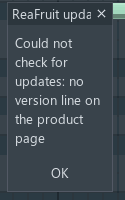
Once a day, when the editor opens, ReaFruit reads the public product page and compares versions. A newer version opens a small window: Download opens the download page, Skip this version stays quiet until the next one, Not now asks again tomorrow, Turn off update checks stops the check. Nothing but a plain page request leaves your computer.
- gear › Advanced › Check for updates (daily, when the editor opens) switches the check on or off.
- gear › Advanced › Check for updates now runs it on demand and reports "You have the latest version" or the reason a check failed.
Open the editor #
The three actions #
All three live in REAPER's main action section, so they can take a key, a toolbar button or a mouse modifier.
| Action | Use |
|---|---|
| ReaFruit MIDI Editor: Open/toggle editor | Opens the editor on the selected item's MIDI take, or closes it. The action reports its state, so a toolbar button lights while the editor is open. |
| ReaFruit MIDI Editor: Open editor or media item properties (mouse modifier) | Assign it under Preferences › Mouse Modifiers › Media item › double click. MIDI items then open in ReaFruit; other items still get REAPER's item properties. |
| ReaFruit MIDI Editor: Move window to the mouse cursor | Brings a window that was left on an unplugged screen back under the pointer. |
The editor follows the selection: pick another MIDI item and the view switches to it. With track-level clips on, every MIDI item on the same track shows as a clip, and notes can be edited across them. The toolbar's right end names the clip in view; it turns orange with "No MIDI take" when nothing is open.
Floating, docked, scaled #
- The editor opens as a floating window. Drag it into REAPER's docker like any other window. gear › View › Prevent docking keeps it floating.
- Shift + drag a window corner scales the view with the window: the same bars and pitches, larger or smaller. A plain corner drag shows more or less of the roll.
- Esc closes the editor when there is nothing to cancel: no drag, no open menu, no selection, no box session.
- The window remembers its size and position; the first open is 1150 × 680.
The help key #
F1 opens this manual in your browser at the section for the item under the mouse: a toolbar button, the lane, an open submenu, a window. gear › Manual opens the first page. The key is the action Open the manual for the item under the mouse in the ReaFruit MIDI Editor section, so it can be rebound like any other.
docs_url in the FL_PianoRoll section of reaper-extstate.ini to the folder holding index.html, as a web address or a path such as C:\ReaFruit\manual. If no address is set, the key says so.The editor window #
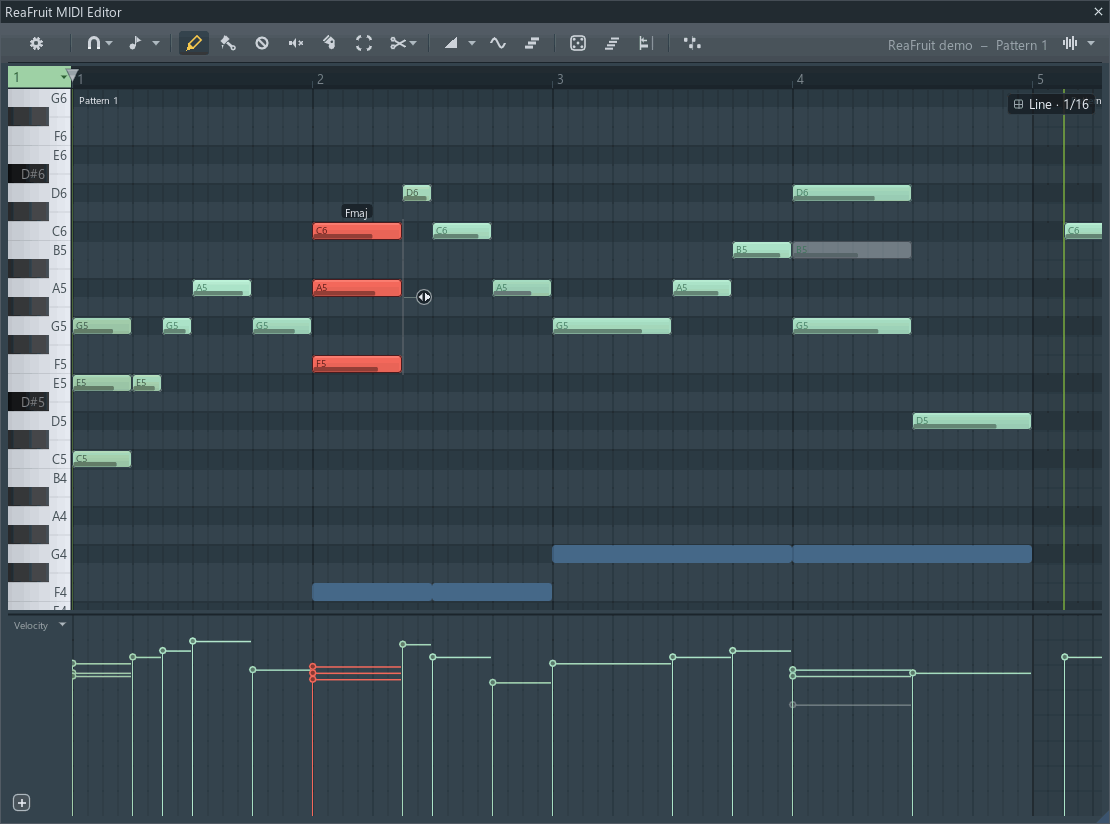
- Toolbar
- Ruler: bar numbers, the loop section, the playhead; the tempo flag lane when shown
- Corner cell: note colour and articulation
- Piano keys
- Note grid
- Snap badge
- Splitter
- Lane stack (velocity shown)
- Target name: the clip in view
Layout #
- Toolbar. The gear menu, snap and scale, the six tools, the note modes and the box sessions. See Toolbar.
- Ruler. Bar numbers that follow REAPER's ruler, the loop section in red, the playhead, and the flag lane for tempo changes when it is switched on.
- Corner cell. The note colour and articulation selector. See Colours and articulations.
- Piano keys. Preview, select by pitch, rename. A note-name strip appears when the track has note names.
- Note grid. Notes, ghost notes, clip bands, chord names, the bass threshold line and the snap badge in the top right corner. Parameter boxes appear in the bottom right.
- Splitter. Drag to resize the lane; drag it shut and a thin grab bar remains.
- Lane stack. Velocity by default. Up to four lanes, each with its own control. See Lanes.
- Target name. The clip in view.
Files dropped anywhere on the window import: see Drag and drop.
Piano keys #
| Gesture | Effect |
|---|---|
| Click | Previews the key. Drag glides across keys. |
| Ctrl + click | Selects every note of that pitch. Shift + Ctrl adds them to the selection. |
| Ctrl + drag | Selects a range of pitches. Shift + Ctrl adds. |
| Right-click | Renames the key. See Note names. |
| Wheel, Ctrl + wheel | Scrolls, zooms vertically. |
In Sheet Music Mode the column widens to show clefs, the key signature and the meter.
Waveform background #
The Waveform button at the toolbar's right end draws an audio track's silhouette behind the notes, for transcribing by eye. Its arrow picks the track and adds a Pitch line, the detected pitch drawn over the keys. The same switches sit under gear › View › Waveform. For an automatic transcription see Audio to MIDI.
Navigation #
There are no scrollbars or zoom buttons. The view moves with the mouse and the keyboard.
| Gesture | Effect |
|---|---|
| Wheel | Scroll vertically. Shift + wheel scrolls horizontally. |
| Ctrl + wheel | Zoom horizontally around the cursor. Ctrl + Shift + wheel zooms vertically. |
| Middle-drag | Pan. |
| PgUp / PgDn | Zoom in and out on the timeline. |
| Arrow keys | Pan the view. Home jumps to the project start. |
| Space | Play or stop, even in the middle of a drag. |
| F | Scroll with playback. gear › View › Playhead position chooses whether the playhead stays where it was placed or travels to 25, 40, 50 or 75 % of the view. |
- gear › View › Smooth scrolling animates view changes.
- gear › View › Frame rate runs the editor at 60 to 180 fps instead of REAPER's default of about 30.
Toolbar #

- Gear menu
- Snap
- Scale lock and the root & scale menu
- Draw
- Paint
- Delete
- Mute
- Slice
- Select
- Chop
- Slide mode and its menu
- Vibrato mode
- Chord stamp
- Humanize
- Strum
- Quantize
- Swing
Hover any item for a one-line tip showing its current key. Items that open a menu carry a small arrow.
Items #
| Item | Key | What it does |
|---|---|---|
| Gear | Opens the menu: File, Edit, Tools, View, Toolbar, Scripts, Advanced, then Manual, View Shortcuts, Mouse modifiers, License and About. See the gear menu reference. | |
| Sheet music | Tab | Switches to Sheet Music Mode. Hidden by default; the key works regardless. |
| Snap | The grid notes snap to: Line (the visible grid), none, 1/6 to 1/2 step, Step, 1/6 to 1/2 beat, Beat, Bar. Holding Alt while dragging ignores it. See Snap and scale. | |
| Scale | The icon toggles Scale lock; the arrow picks the root and scale, lists detected scales, ReaScale files and the flat-names option. In the menu, Alt shows each mode's equivalent root. | |
| Draw, Paint, Delete, Mute, Slice, Select | P B D T C E | The six tools. |
| Chop | Ctrl+U | Cuts the selected notes into grid pieces: the current snap, a fixed size, or a ghost track's rhythm. The key chops at the current snap. See Chop. |
| Slide | S | Slide mode: new notes bend from the previous pitch. The arrow sets the bend range for this clip, MPE for this track, and the tuning. See Slides and vibrato. |
| Vibrato | V | Vibrato mode: a note's interval is the depth, its length the ramp-up, its velocity the rate. |
| Chord stamp | Alt+T | Draw whole chords. Opens the stamp's parameter boxes. See Chord stamp. |
| Humanize, Strum, Quantize, Swing | Alt+H Alt+S Alt+Q Alt+Shift+S | Open a parameter box session with a live preview. |
| Target name | The clip in view. Orange "No MIDI take" means nothing is open. | |
| Waveform | The icon shows or hides the waveform background; the arrow picks the track and the pitch line. |
In Sheet Music Mode the roll-only items step aside and the tool slot becomes the note-entry strip.
Customising #
- gear › Toolbar lists every item with a check mark; untick to hide. Right-clicking the empty part of the strip shows the same rows. A hidden item's key still works.
- gear › Toolbar › Layout switches from the built-in strip to a mirror of one of REAPER's floating toolbars. Arrange that toolbar in REAPER's Customize menus/toolbars dialog and the strip follows, REAPER commands included. Every ReaFruit item is also a REAPER action named ReaFruit MIDI Editor: …, so REAPER's own toolbars and bindings can drive them.
Tools and modes #
A tool decides what a plain click and drag do on the grid. A mode changes what a drawn note is (a slide, a vibrato, a chord) or adds a way of selecting. Modes stay on across tool changes.
The six tools #
Pick a tool on the toolbar or with its key. The table shows the default gestures; Alt makes any move, clone, insert or resize ignore the snap grid.
| Tool | Click a note | Drag a note | Click empty grid | Drag empty grid | Drag a note's edge |
|---|---|---|---|---|---|
| Draw P | Grab it. Its length, colour and lane values become the defaults for new notes. Shift: adopt those settings without selecting. | Move. Shift: clone. | Insert a note of the default length, or the stamped chord. Shift: a one-cell note. | Move the new note. Shift: set its length, which becomes the default. | Resize. Shift: clone. |
| Paint B | As Draw. | As Draw. | Insert. | Paint a row of notes along the drag. | Resize. |
| Delete D | Erase the top note under the cursor. | Erase every note swept. | Erase sweep. | Erase sweep. | |
| Mute T | Mute or unmute it. | Mute sweep. | Mute sweep. | Mute sweep. | |
| Slice C | Split it at the cursor. | Draw a cut line; release to slice every note it crosses. | Cut line. | Cut line. | |
| Select E | Select it. Shift: toggle. | Deselect all. | Marquee. Shift: add to the selection. |
Gestures in every tool #
| Gesture | Effect |
|---|---|
| Ctrl + click a note | Select only that note. Shift + Ctrl: toggle it. |
| Ctrl + drag | Marquee. Shift + Ctrl: add to or remove from the selection; the first note touched decides which. |
| Right-click a note | Erase it. |
| Right-drag | Erase every note swept. Alt + right-drag: audition line, which plays the notes it crosses. |
| Double right-click | Jump to the ghost clip under the cursor. Held, it mutes the note until released. |
| Middle-drag | Pan. |
| Alt + wheel over a note | Velocity, or a vibrato's rate. Shift + Alt: slide or vibrato tension. Ctrl + Alt: vibrato depth. |
| Alt + wheel over empty grid | Note colour. With the chord stamp on, its inversion. Ctrl + Alt: chord stamp type. |
| Drag the stretch chip | The small handle at the selection's end stretches the selected notes in time. Alt snaps the end. |
| Esc during a drag | Cancels it and puts the notes back. |
Chord stamp #
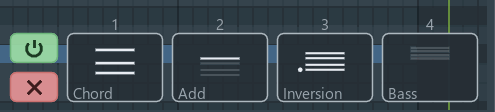
- Power and close
- Chord
- Add
- Inversion
- Bass
Alt+T or the toolbar button. While the stamp is on, Draw and Paint place whole chords: the clicked pitch is the root. Its parameter boxes set the Chord type, Added notes, the Inversion (Auto, or a fixed number up or down) and a Bass note one or more octaves below. The power button on the boxes silences the stamp while they stay open; any edit switches it back on. Over empty grid, Ctrl+Alt + wheel changes the chord type and Alt + wheel the inversion. The snap badge in the grid's corner shows the stamp's state.
Magic lasso #
FL Studio's invisible lasso: with no button held, move the mouse in a loop around notes and they are selected when the loop closes. It is off by default. gear › Edit › Magic lasso (notes) turns it on for the grid, Magic lasso (velocity lane) for the lane's handles. Hold L to see the path; while L is held the lasso works even with the options off. Shift adds the circled notes to the selection.
Pattern mode #
Hold ` (the key left of 1). Every clip becomes a handle wearing its name; drag the handles to move clips. Release the key to return to notes.
Bass threshold line #
Alt+B or gear › View › Bass threshold line draws a horizontal line across the grid labelled with its pitch. Notes below the line count as bass notes: when chords are named, a note under the line is the bass of a slash chord rather than a chord tone. Drag the line to move it. Double-click it to turn it off.
Notes #
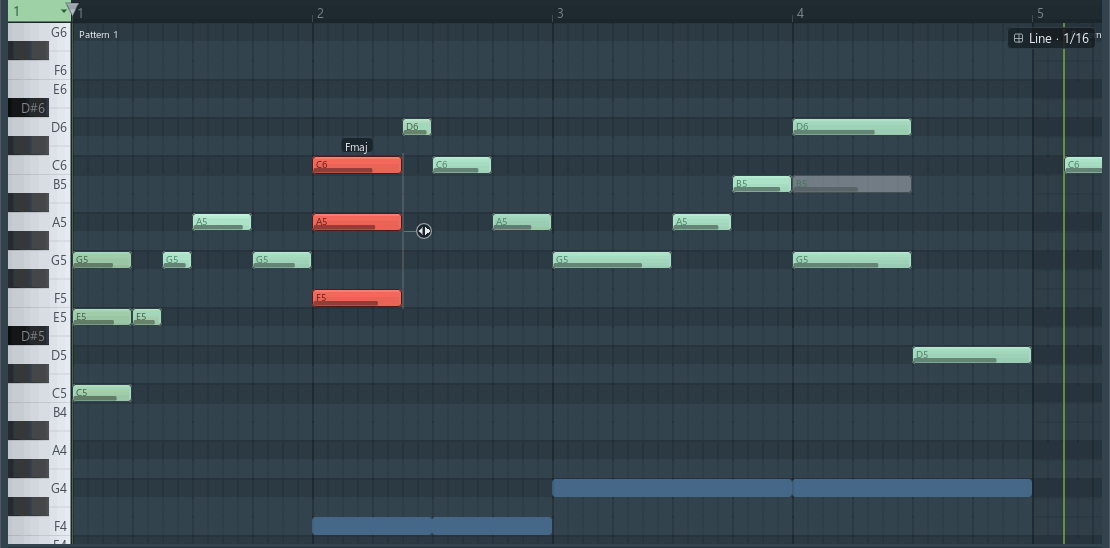
- Chord name over the selected chord
- Selected notes
- Muted note
- Slide note
- Vibrato note
- Clip band and label
- Snap badge
- Ghost notes from another track
- Selection stretch chip
Editing notes #
- Add. Click empty grid with Draw or Paint. New notes take the length, colour and velocity of the last note clicked.
- Move, resize, clone. Drag the note, its edge, or Shift + drag for a copy. Alt ignores the snap.
- Delete. Delete or Backspace removes the selection; right-click removes one note.
- Select. Ctrl+A all, Ctrl+D none, Esc clears. Shift+C selects every note of the current colour.
- Clipboard. Ctrl+C, Ctrl+X, Ctrl+V pastes at the playhead. Ctrl+B duplicates the selection right after itself. Per-note lane values travel with the notes.
- Transpose and nudge. Shift+↑/↓ a semitone, Ctrl+↑/↓ an octave, Shift+←/→ one grid step.
- Recolour. Alt+C paints the selection with the current colour.
- Undo. Ctrl+Z and Ctrl+Y are REAPER's undo and redo; every edit is one step.
Deleted notes fade out and new ones ring; gear › View › Note animations turns that off.
Colours and articulations #
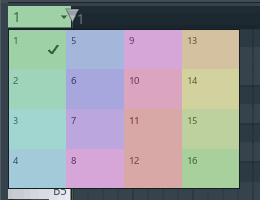
Every note has one of 16 colours, as in FL Studio. The corner cell above the piano keys shows the current colour's number and the articulation mapped to it.
- Click the cell for the 4 × 4 colour grid. Alt + wheel over empty grid steps through the colours.
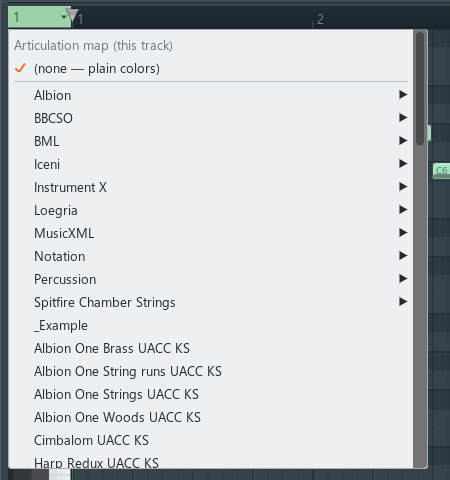
- Right-click it for the articulation map menu. A map assigns an articulation to each colour: a
.txtmap fromData\ReaFruit Articulationsor a bank from a.reabankfile underData. With a map active, ReaFruit writes the keyswitch for a note's colour just before the note, and Label articulation changes prints the name on the grid where the articulation changes. The same menu sits under gear › Tools › Articulation. - Ctrl + click opens Articulations on the staff, which gives each colour a symbol in Sheet Music Mode.
The map submenu also holds the Instrument X link.
Chords #
- Select two or more notes that sound together and the chord's name appears above them. Notes under the bass threshold line name the slash bass.
- gear › Edit › Preview chords while dragging (on by default) plays the chord under a moving note.
- The chord stamp draws chords; Legato with slides connects chord changes with slides; Strum rolls them.
Slides and vibrato #
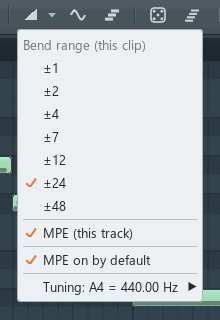
Both are drawn as notes and written to the MIDI as pitch bend. S and V switch the modes; only one can be on. With gear › View › Slide/vibrato curves on, the grid draws the bend each one makes.
- Slide. In Slide mode a drawn note is a slide: the sounding note bends to the slide's pitch over the slide's length. The curve's tension is set with Shift+Alt + wheel over the note, or in the Tension box that appears while slide notes are selected. A slide downward mirrors the curve.
- Vibrato. In Vibrato mode a drawn note is a vibrato on the note under it: its interval is the depth, its length the ramp-up time, its velocity the rate. Selected vibrato notes show Rate, Scale and Tension boxes; Ctrl+Alt + wheel scales the depth.
- Bend range and MPE. The Slide button's arrow sets the bend range for this clip (±1 to ±48 semitones, which the instrument must match), switches MPE on for this track so each note bends on its own channel, and sets whether new tracks get MPE. The tuning submenu sets A4 (415 to 465 Hz), for this clip or the whole project.
Ghost notes #
Other tracks' notes show dimmed behind the clip's own. Alt+V or gear › View › Ghost notes toggles them; Ghost notes use track colors tints them per track; Ghostable (this clip) decides whether the current clip shows as a ghost in other editors. Double right-click a ghost note to jump to its clip; where ghosts overlap, a list asks which one. Chop can cut notes to a ghost track's rhythm.
Clips #
With gear › View › Track-level clips on (the default), every MIDI item on the track is a clip in the same view. The grid dims outside the current clip, and each clip has a band with its name. Edits can span clips.
| Gesture | Effect |
|---|---|
| Drag a clip edge | Trim the clip. Alt ignores the snap. |
| Double-click a clip edge | Glue the clip to its neighbour. |
| Drag the label | Move the clip. Shift: drag a pooled copy, which shares its notes. Ctrl: slip the content inside the clip. |
| Double-click the label | Rename. |
| Right-click the label | Menu: Rename, Copy from another track's pattern, Cut, Copy, Paste in place, Delete, Unpool. |
| Hold ` | Pattern mode: every clip is a handle. |
| Ctrl+G with clips selected | Merge them. |
Per-note lane values stay with their notes when clips move or copy; gear › Advanced › Background helper does that work between frames.
Snap and scale #
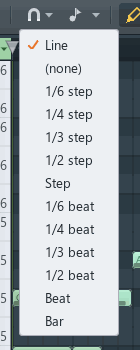
- Snap is the toolbar's first menu: Line follows the visible grid as you zoom; the others are fixed fractions of a step (a 16th), a beat, or a bar. The badge in the grid's top right corner shows the current snap. Alt while dragging ignores it. Ctrl+Q pulls the selected notes' starts onto the grid.
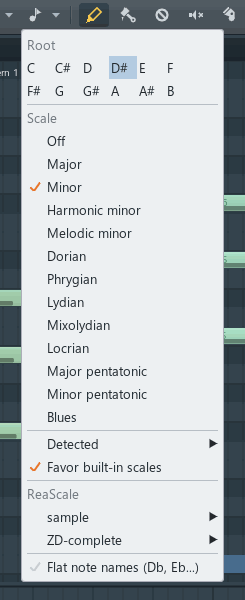
- Scale lock (the Scale icon) keeps drawn and moved notes on the chosen scale and dims the keys outside it. The arrow picks the root and one of Major, Minor, Harmonic minor, Melodic minor, Dorian, Phrygian, Lydian, Mixolydian, Locrian, Major pentatonic, Minor pentatonic and Blues; Detected rows offer the scales that fit the clip's notes; ReaScale lists REAPER's scale files; Flat note names spells D♭ instead of C♯. Holding Alt in the menu shows each mode's equivalent root. The scale is saved with the project.
Note names #
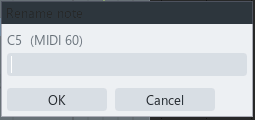
gear › Tools › Note names loads a note-name map onto the track, the same names REAPER's MIDI editor shows: the maps in MIDINoteNames in the resource folder, Load from file…, Save to file…, Rename note… and Clear note names. Right-clicking a piano key renames that key. With names present, the key column grows a strip that shows them; drum maps read as pads.
Ruler and tempo #
The ruler #
Bar numbers follow REAPER's ruler, including a project that starts at a bar other than 1. The loop section shows as a red band.
| Gesture | Effect |
|---|---|
| Click | Move the edit cursor. Alt ignores the snap. |
| Drag | Scrub. |
| Right-drag | Set the loop section; drag an edge of it to adjust. A right click inside the loop clears it. |
| Double-click | Clear the loop. Ctrl + double-click adds a tempo change. |
| Middle-drag, wheel | Pan, scroll and zoom as on the grid. |
Tempo change markers #

- Bar numbers
- Tempo change flags with their BPM; the first marker is pinned
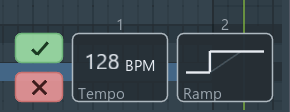
- Tempo in BPM
- Ramp on or off
- Keep or cancel
gear › View › Show tempo change markers (off by default) adds a lane under the bar numbers with the project's tempo map, FL style: a stem and an amber tag at each change showing the BPM, and the meter where it changes. Guide lines run down the grid from each flag. The playhead and the grid follow the tempo map either way.
- Click a tag to edit it in two parameter boxes: Tempo (BPM, three decimals) and Ramp (a gradual change to the next marker). Enter keeps, Esc cancels.
- Drag a tag to move the change. The project's opening marker stays where it is.
- Ctrl + double-click the ruler to add a change there. gear › Edit › Tempo change at cursor… adds or edits the one at the edit cursor.
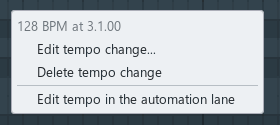
- Right-click a tag: Edit, Delete, or Edit tempo in the automation lane. Right-click an empty part of the lane: Add tempo change here.
- The lane menu's Project › Tempo shows the whole map as points in the lane, one per change, where ramps and steps can be shaped.
Lanes #

- Lane label: click for the lane menu
- Handles of the selected notes
- One handle per note; click or drag to set values
- Corner buttons: Edit as points, add a lane, remove this lane
The lane under the grid edits one control at a time: note velocities, per-note swing, a plugin parameter, a track envelope, a MIDI CC, or the tempo map. A lane works in one of two ways. Value mode draws one handle per note. Points mode draws a free envelope.
The lane stack #
- Drag the splitter above a lane to resize it; drag it shut and a thin grab bar remains to reopen it.
- The label column's corner buttons: the curve icon switches Edit as points, + adds a lane below, − removes this lane. Up to four lanes stack, each with its own control, mode and height, remembered per track.
- The column also lists the track's automated controls; click one to show it in this lane.
- A lock on the label marks a lane the editor writes itself, such as the pitch bend under slides.
The lane menu #
Click the lane's label.
| Row | Shows |
|---|---|
| Velocity | Note velocities. |
| Swing | A per-note swing override on top of the project's swing. |
| Last touched FX parameter Alt+A | Whatever plugin control you moved last on this track. |
| Edit as points | Points mode for a plugin or envelope lane. CC and tempo lanes are always points. |
| Shapes | The shape palette. |
| Track envelopes | Volume, Pan, Width, Trim volume. |
| Project › Tempo | The tempo map as points. |
| MIDI CC | The clip's controller events: the pitch bend, a channel filter, and CC 0 to 127 in groups. A dot marks controllers the clip already uses; "read-only" marks ones the editor writes itself. |
| one submenu per FX | The plugin's parameters, grouped as the plugin groups them. |
Value mode #
One handle per note. For a plugin or envelope control this is per-note automation: the value the control takes when the note plays, which travels with the note when it moves or is copied.
| Gesture | Effect |
|---|---|
| Click, drag | Set the value under the cursor; drag paints across notes. |
| Ctrl + click / drag | Select the note under the handle; drag selects by value. Shift + Ctrl adds. |
| Alt + click / drag | The selected notes take the value; drag makes them follow the cursor. With nothing selected, resets. |
| Right-drag | Ramp the values along a line. |
| Ctrl + right-drag | Scale the selected values; the nearer edge moves. |
| Alt + right-drag | Tilt or arch the selected values; the nearer end moves. |
| Ctrl + Alt + right-drag | Compress them toward the top or bottom. |
| Shift + Alt + right-drag | Warp them; the lowest and highest stay. |
Points mode #

- The lane's control: CC1 here
- Points; right-click adds one, drag moves it
- A segment; drag to bend it
A free envelope, automation-clip style. Right-click adds a point; drag a segment to bend it.
| Gesture | Effect |
|---|---|
| Right-click empty lane | Add a point. Alt ignores the snap. |
| Drag a point, right-drag | Move it. Shift holds its value. |
| Click a point | Grab it; an unselected point becomes the selection. Ctrl: select only; Shift + Ctrl: toggle. |
| Double-click a point | Reset it to the control's default. |
| Drag a segment | Bend it. Click or right-click a segment to straighten it. |
| Ctrl + drag | Box-select points. Shift + Ctrl adds. Ctrl + click empty lane deselects. |
| Right-drag with modifiers | The same scale, tilt, compress and warp transforms as value mode. Shift + Ctrl + Alt stretches the selected points in time. |
Point menu (right-click a point): the segment shape into the point (Linear, Square, Slow start or end, Fast start, Fast end, Bezier); Delete point or the selected points; with several selected, Flip values, Mirror values within their range, Reverse in time, Space evenly; and a Value field that accepts dB, %, L/R or the control's own units.
Shapes #
lane menu › Shapes lists the shapes saved in Data\ReaFruit Shapes. Pick one and the pointer carries it: click places it (Alt ignores the snap), drag scales or warps it before it lands, the wheel sets its width in grid cells (Alt: tenths; Ctrl: double or halve), right-drag opens the palette. Save selection as shape… stores the selected points as a new one. Point tool returns to plain editing.
Parameter boxes #
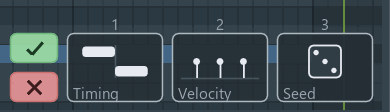
- Keep or cancel the session
- Timing
- Velocity, the lane's value
- Seed: a die
How they work #
Parameter boxes appear in the grid's bottom right corner, up to nine in a row, whenever a feature has settings to show: a tool session, the chord stamp, the arpeggiator, an import, a script.
- Change a value by dragging the box, Shift for fine steps, or by rolling the wheel over it. Hold the box's number key 1 to 9 and roll the wheel from anywhere on the roll.
- Double-click resets a box. Right-click lists its options or lets you type a value within its range.
- Sessions (Humanize, Strum, Quantize, Time warp, the imports, scripts) preview live. Enter, the ✓ or a click on the roll keeps the result as one undo step; Esc or the ✗ puts everything back.
- Persistent sets (chord stamp, arpeggiator, swing) have a power button and a close button; their values are remembered.
- A button box runs on a press of its key: 1 the next arpeggiator pattern, 2 the next Quantize durations mode, 3 a new Humanize seed.
- gear › View › Parameter boxes draws them at 1×, 1.25× or 1.5×.
Humanize #
Alt+H. Randomises the selected notes. Timing is the largest shift of a start; the second box is the largest change of the lane's current value (velocity by default); Seed is a die: press it, or 3, for a new throw.
Strum #
Alt+S. Rolls each selected chord. Timing spreads the chord's notes in time and its Tension shapes the spread; Velocity ramps the velocities across the chord with its own Tension.
Quantize #
Alt+Q. Strength moves note starts part or all of the way to the grid; Durations keeps the lengths, snaps the ends, or snaps the lengths (2 cycles it); Grid is a snap size or a groove. Ctrl+Q quantises starts fully with no boxes.
Swing #
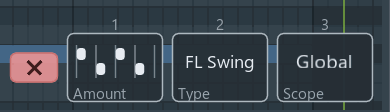
Alt+Shift+S. Amount in percent; Type is FL Studio's swing curve or a groove file (.rgt) from Data\Grooves, with files that differ only by a percentage folded into one family; Scope applies it to the whole project, this track, or the selection. The swung positions preview on the roll. gear › Tools › Swing shows the project's amount as a slider and the groove tree; the Swing lane overrides single notes.
Time warp #
Alt+W. One box bends the selected notes' timing over their span: positive values push the notes toward the end, negative toward the start, the first and last staying put. Preview, then Enter.
Arpeggiator #

- Power and close
- Glue
- Pattern
- Time
- Gate
- Range
- Repeat
Alt+R or gear › Tools › Arpeggiator. Per clip, its held chords play as a pattern while the notes stay as drawn. Pattern: Up, Down, Up-down, Up-down ending twice, Up and Down converging, Down and Up converging, Xross, Random. Time 1/4 to 1/32, Gate 25 to 100 %, Range 1 to 4 octaves, Repeat 1× to 4×. The power button switches it off; Glue (Ctrl+Enter) writes the pattern into real notes and switches it off.
Legato #
Ctrl+L extends each selected note to the next note's start. Ctrl+Alt+L, Legato with slides, joins chord changes with MPE slides; gear › Tools › Legato slides chooses whether the first chord holds or each chord is led into.
Chop #
The toolbar's Chop menu cuts the selected notes into pieces: the current snap, a fixed size from 1/2 bar down, or the rhythm of a ghost track. Ctrl+U chops at the current snap without the menu.
Glue #
Ctrl+G merges selected notes of the same pitch that touch or overlap into one note. With clips selected, it merges the clips.
Sheet Music Mode #
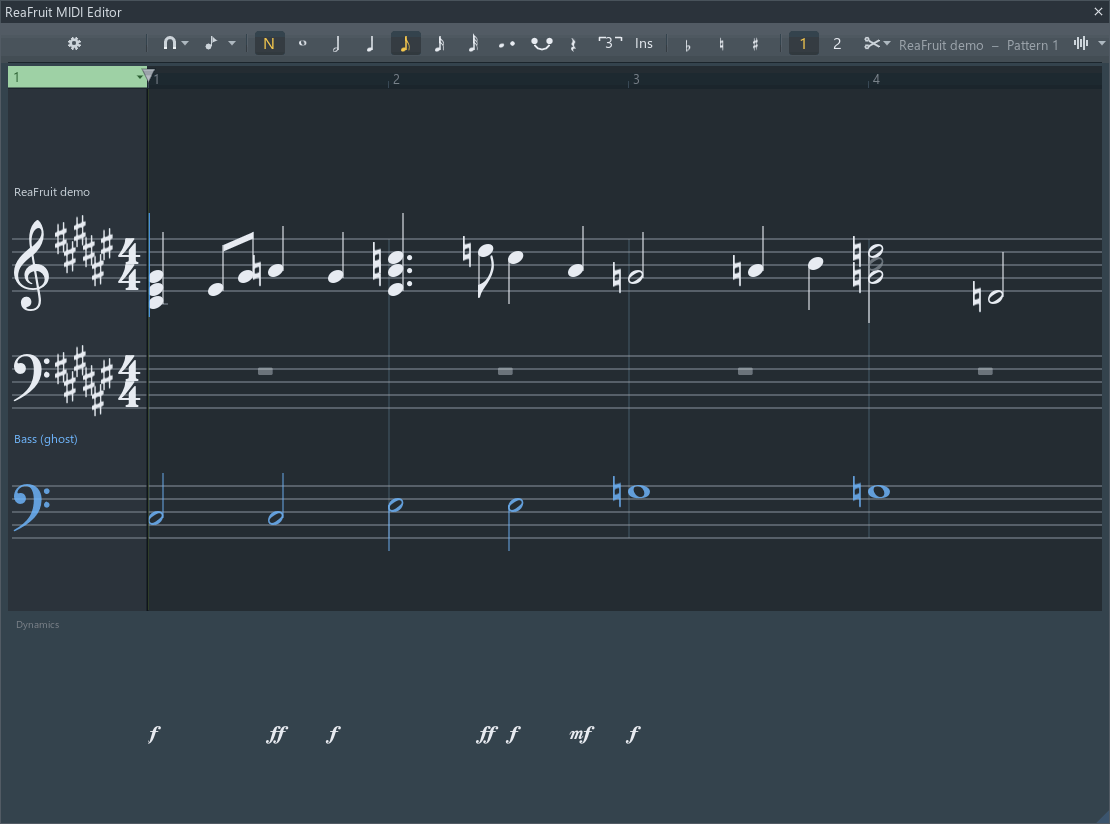
- Note-entry strip: input, durations, dot, tie, rest, triplet, insert, accidentals, voices
- Clefs, key signature and meter
- Input caret
- Another track's notes as ghosts
- Dynamics row
Tab shows the clip as notation on a grand staff and lets you enter and edit notes MuseScore-style. The same MIDI is edited either way; voices, accidentals, stems, slurs and tuplets are stored as REAPER notation events, so REAPER's own notation editor sees them too.
The view #
- The key column widens to show the clefs, the key signature and the meter. The ruler, the corner cell and the playhead stay.
- The lane becomes the dynamics row; a band above the treble staff holds playing techniques.
- Triplets are detected from the note timing. Notes of other clips and tracks show as ghosts as on the roll.
- gear › View › Sheet music holds the mode switch and three options: Grand staff for other instruments (a grand staff for every instrument, not only piano), Engrave 64th notes (adds the 64th to the durations), Extend clip while entering (the clip grows as you enter past its end).
Note input #
In Sheet Music Mode the toolbar's tool slot becomes the note-entry strip. N or its first button places the input caret on the staff. Pick a duration, then type pitches.
| Key | Effect |
|---|---|
| 7 6 5 4 3 2 1 | Whole, half, quarter, eighth, 16th, 32nd, 64th. The strip has the same buttons. |
| A to G | Enter that pitch, in the octave nearest the caret, and advance. |
| Shift + A to G | Add that pitch to the chord just entered. |
| 0 | A rest. |
| ., + | Dot the duration; tie the next note to the last. |
| Ctrl + 2 to 7 | Duplet to septuplet of the current duration. The strip's Triplet button is Ctrl+3. |
| Q / W | Halve or double the duration. |
| R | Repeat the last note or chord. |
| ↑ / ↓ | Move the last note a semitone. Alt+Shift: a scale step. Ctrl: an octave. |
| ← / → | Move the caret a note. Ctrl: a measure. |
| - \ = | Flat, natural, sharp. J respells enharmonically. |
| Ctrl+Alt+1 / 2 | Voice 1 (stems up) or voice 2 (stems down, its own rests). |
| Ctrl+Shift+I | Insert mode: entering pushes later notes to the right. Ctrl+Delete removes time. |
| Esc | Leave note input. |
With the transport stopped, notes played on a MIDI keyboard enter at the caret too.
Editing on the staff #
- Click a notehead to select it, Shift to toggle, Ctrl + drag for a marquee. Delete removes the selection.
- Drag a notehead up or down to change its pitch by staff steps; Alt moves in semitones.
- X flips stems, S slurs the selection, Shift+S / V / N / O add staccato, accent, tenuto and marcato. The strip's flat, natural and sharp buttons alter the selection; press again to undo.
- The roll's clipboard, transpose and undo keys work here as well.
Dynamics and techniques #
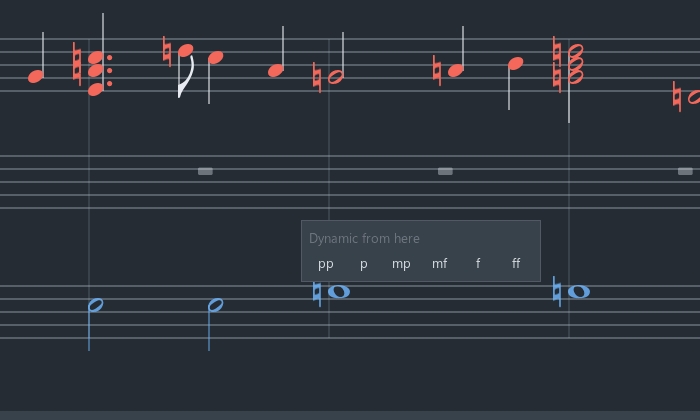
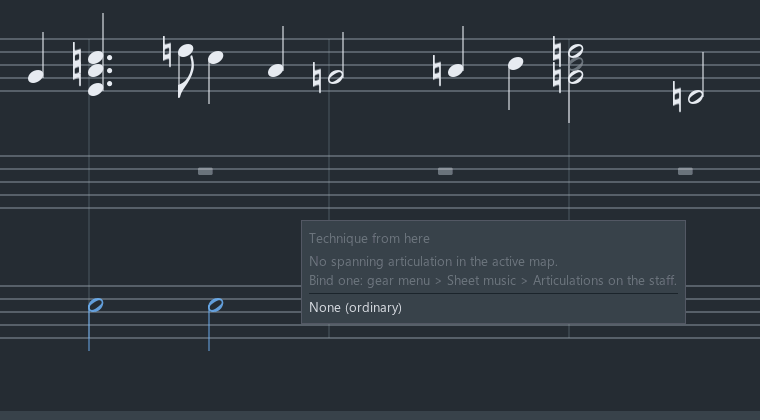
Click the dynamics row under the staves to set a dynamic from that point: pp, p, mp, mf, f or ff. Click the band above the treble staff to set a technique from that point. Both are written to the MIDI and exported to MusicXML.
Articulations on the staff #

With an articulation map active, this window gives each colour slot a staff symbol. Open it from gear › Tools › Articulation › Articulations on the staff… or with Ctrl + click on the corner cell. Each row shows the colour slot, its switch, the staff symbol to draw, whether it applies to the note or to a span, and a label. Apply & save writes the choices into the map, Revert drops them, Map order sorts the rows as the map lists them.
Import and export #
Drag and drop #
Drop a file anywhere on the editor: a MIDI file (.mid, .midi), a MusicXML score (.mxl, .musicxml, .xml), an FL Studio score (.fsc) or an audio file (.wav, .mp3, .flac and the other formats REAPER reads). The same imports sit under gear › File.
MIDI files #
- gear › File › Import MIDI file (.mid)… loads a file into the open clip. A file with several note tracks first asks for the Track in a parameter box: all of them, or one by name. A Tempo box then shows the tempo the file was written at; the notes are placed against it so bars line up, and you can adjust it before keeping.
- gear › File › Export MIDI file (.mid)… writes the clip as a MIDI file.
MusicXML #
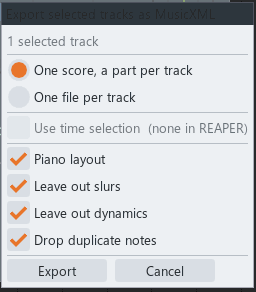
- Import. A score with several parts asks which to load: all parts, one channel each, or a single part. gear › File › MusicXML import options: Import tempo and time signature and Rename track on part import, both on by default.
- Export the clip. gear › File › Export MusicXML (.musicxml)…
- Export tracks. gear › File › Export selected tracks as MusicXML… writes one score with a part per track, or one file per track, optionally only the time selection.
- Export options (the submenu and the export dialog): Piano layout splits the music onto two staves by hand and voice and picks the clefs; Leave out slurs; Leave out dynamics; Drop duplicate notes (on by default) removes notes doubled at the same pitch and time.
FL Studio score #
gear › File › Import FL Studio score (.fsc)… loads a score saved from FL Studio's piano roll, note colours included.
Audio to MIDI #
gear › File › Import audio as MIDI… transcribes an audio file into the clip. A popup shows the analysis with a Cancel button; then the result previews with these boxes:
| Box | Meaning |
|---|---|
| Mode | Poly sustain, Poly decay or Mono. Polyphonic voices land in different colours. |
| Sensitivity | How faint a note still counts. |
| Shortest note, Shortest glide | In milliseconds: anything shorter is dropped or merged. |
| Gate | Notes below this velocity are dropped. |
| Glides, Vibrato | Write pitch movement as slides and vibrato notes. |
| Tempo | Stretched (the detected tempo becomes the grid) or Real time. |
| Start | First note at the clip start, or as played. |
gear › File › Quantize after audio import snaps the result. The waveform background shows the source for comparison.
Hookpad #
Copy chords and melody in Hookpad, then press Ctrl+V in the editor: they paste as notes at the playhead. The editor's own clipboard is used when there is nothing from Hookpad.
Gear menu #
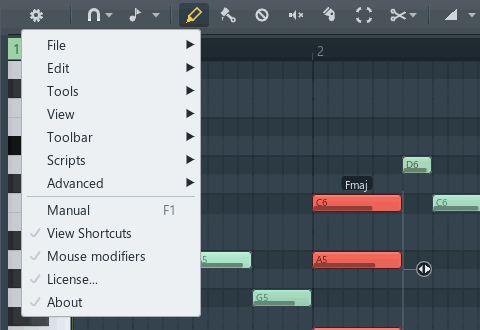
The gear button at the toolbar's left end opens the menu. Rows with a check mark are switches; a right-click applies a row without closing the menu. Keys shown are the defaults.
File #
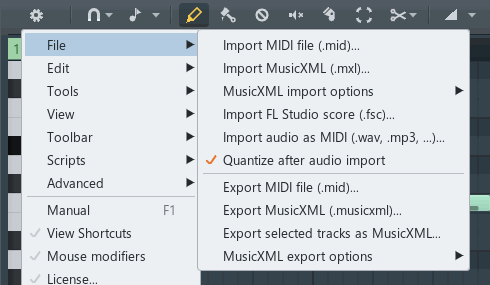
| Row | Does |
|---|---|
| Import MIDI file (.mid)… | Loads a MIDI file into the clip. See MIDI files. |
| Import MusicXML (.mxl)… | Loads a score. See MusicXML. |
| MusicXML import options ▸ | Import tempo and time signature; Rename track on part import. |
| Import FL Studio score (.fsc)… | Loads an FL Studio score. |
| Import audio as MIDI… | Transcribes an audio file. See Audio to MIDI. |
| Quantize after audio import | Snaps a transcription to the grid. |
| Export MIDI file (.mid)… | Writes the clip as a MIDI file. |
| Export MusicXML (.musicxml)… | Writes the clip as a score. |
| Export selected tracks as MusicXML… | One score or one file per selected track. |
| MusicXML export options ▸ | Piano layout; Leave out slurs; Leave out dynamics; Drop duplicate notes. |
Edit #
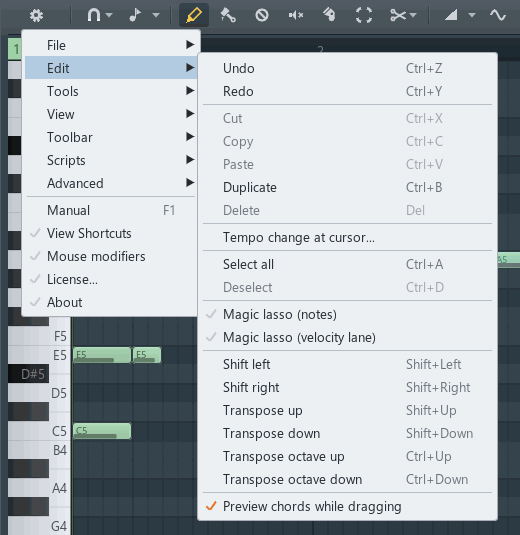
| Row | Key | Does |
|---|---|---|
| Undo, Redo | Ctrl+Z, Ctrl+Y | REAPER's undo. |
| Cut, Copy, Paste, Duplicate, Delete | Ctrl+X C V B, Delete | The selection. Paste lands at the playhead. |
| Tempo change at cursor… | Adds or edits the tempo change at the edit cursor. | |
| Select all, Deselect | Ctrl+A, Ctrl+D | |
| Magic lasso (notes), Magic lasso (velocity lane) | The lasso switches, off by default. | |
| Shift left, Shift right | Shift+← / → | Nudge the selection one grid step. |
| Transpose up, down; octave up, down | Shift+↑ / ↓; Ctrl+↑ / ↓ | |
| Preview chords while dragging | Plays the chord under a moving note. On by default. |
Tools #
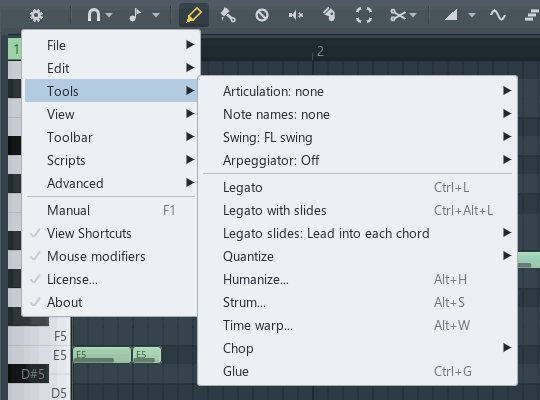
| Row | Key | Does |
|---|---|---|
| Articulation: … ▸ | The Instrument X link, the articulation maps (.txt maps, ReaBank banks, none), Label articulation changes, and Articulations on the staff…. | |
| Note names: … ▸ | The note-name maps: the folder's maps, Load from file…, Save to file…, Rename note…, Clear note names. | |
| Swing: … ▸ | The project's swing amount, the per-track note, Parameter boxes, FL Swing, and the groove files. See Swing. | |
| Arpeggiator: On/Off ▸ | The pattern, time, gate, range and repeat for this clip. See Arpeggiator. | |
| Legato | Ctrl+L | Extends notes to the next. |
| Legato with slides | Ctrl+Alt+L | Joins chord changes with slides. |
| Legato slides: … ▸ | Hold the first chord, or Lead into each chord. | |
| Quantize ▸ | Alt+Q, Ctrl+Q | Quantize… with boxes; Quick quantize note starts. |
| Humanize…, Strum…, Time warp… | Alt+H, Alt+S, Alt+W | Box sessions. See Parameter boxes. |
| Chop ▸ | Ctrl+U | Cut notes into grid pieces. |
| Glue | Ctrl+G | Merges notes, or clips. |
View #
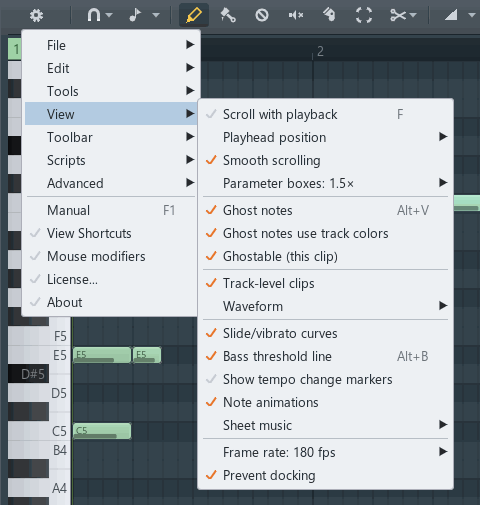
| Row | Key | Does |
|---|---|---|
| Scroll with playback | F | The view follows the playhead. |
| Playhead position ▸ | Keep where it was placed, or travel to 25, 40, 50 or 75 % of the view. | |
| Smooth scrolling | Animated view moves. On by default. | |
| Parameter boxes: 1× ▸ | 1×, 1.25× or 1.5× boxes. | |
| Ghost notes | Alt+V | Other tracks' notes, dimmed. |
| Ghost notes use track colors | Tints ghosts per track. | |
| Ghostable (this clip) | Whether this clip shows as a ghost elsewhere. | |
| Track-level clips | Every MIDI item on the track in one view. On by default. | |
| Waveform ▸ | Pitch line, Show waveform, the audio track. | |
| Slide/vibrato curves | Draws the bend each slide and vibrato makes. On by default. | |
| Bass threshold line | Alt+B | See Bass threshold line. |
| Show tempo change markers | The flag lane under the ruler. Off by default. | |
| Note animations | Fades and rings on edits. On by default. | |
| Sheet music ▸ | Tab | Sheet music mode; Grand staff for other instruments; Engrave 64th notes; Extend clip while entering. |
| Frame rate: … ▸ | REAPER default (about 30 fps), or 60, 90, 120, 150, 180 fps. See Navigation for what the rate does to other scripts. | |
| Prevent docking | Keeps the window floating. |
Toolbar #
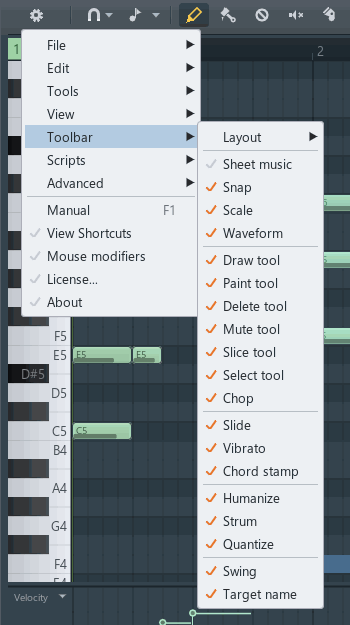
| Row | Does |
|---|---|
| Layout ▸ | Built-in, or Mirror a REAPER toolbar (Floating toolbar 1 to 16); Customize menus/toolbars… opens REAPER's dialog. |
| Sheet music, Snap, Scale, Waveform; Draw… Select, Chop; Slide, Vibrato, Chord stamp; Humanize, Strum, Quantize; Swing, Target name | Shows or hides each strip item. Greyed while a mirrored layout is in force. |
Scripts #
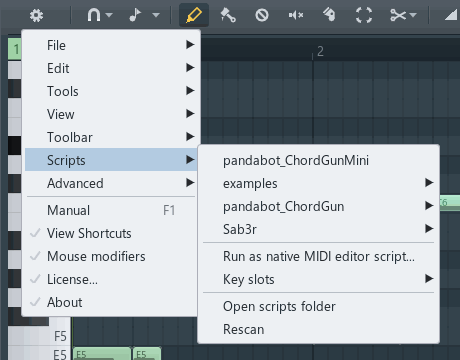
| Row | Does |
|---|---|
| the scripts | Every .lua, .eel and .py file in Scripts/ReaFruit, subfolders as submenus; a click runs it. See Scripts. |
| Run as native MIDI editor script… | Runs a script written for REAPER's MIDI editor against this clip. |
| Key slots ▸ | Assigns a script to each of eight slots that can take a key. |
| Open scripts folder, Rescan | The folder in the file manager; re-read it. |
Advanced #
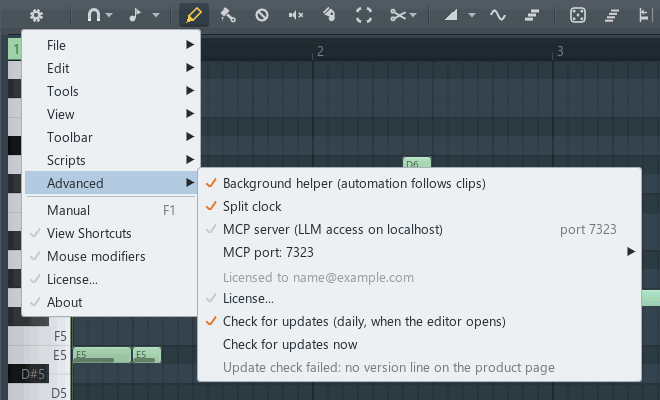
| Row | Does |
|---|---|
| Background helper (automation follows clips) | Keeps per-note lane values with their notes when clips move. On by default. |
| Split clock | Windows: the editor's frame rate runs on its own timer. On by default. |
| Option+click guard | macOS only: keeps Option-clicks from reaching REAPER's own handlers. |
| MCP server (LLM access on localhost), MCP port ▸ | See MCP server and license. Off by default; ports 7323 to 9765. |
| License… | The license window. |
| Check for updates (daily, when the editor opens), Check for updates now | See Updates. |
Bottom rows #
| Row | Key | Does |
|---|---|---|
| Manual | F1 | Opens this manual. The key opens it at the hovered item's section. |
| View Shortcuts | A window listing every binding as it currently stands, with a button to REAPER's Actions window. | |
| Mouse modifiers | The mouse modifier window. | |
| License… | The license window. | |
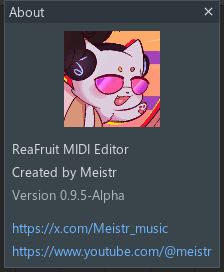
| About | Version and links. |
Mouse modifiers #
Every mouse gesture in the editor is a cell in a table: a context (what is under the pointer), an action (which button, click or drag) and a modifier combination pick a behaviour. The tables below are the defaults; the window changes them.
The window #
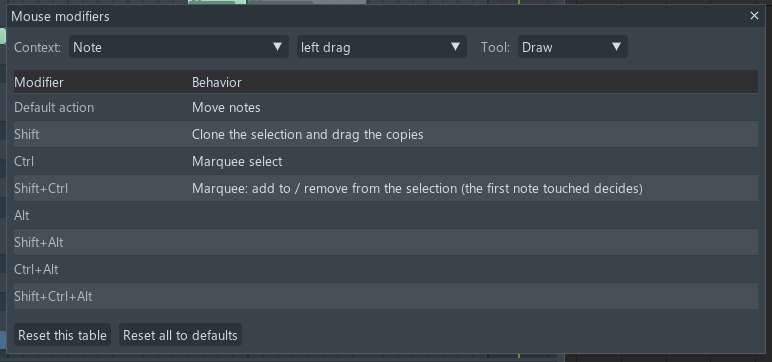
- Context
- Action
- Tool, for the tables that differ per tool
- One row per modifier set; click a row to pick a behaviour
- Reset this table, or everything
gear › Mouse modifiers, or the button in the Shortcuts window.
- Context picks one of sixteen: Note, Note edge, Piano roll, Selection stretch handle, Clip edge, Clip label, Ruler, Piano keys, Value lane, Automation point, Automation segment, Automation lane, Shape tool, Sheet note, Sheet staff, Magic lasso. The second combo picks the action; a Tool combo appears for the cells that differ per tool.
- The table has one row per modifier set: none, Shift, Ctrl, Shift+Ctrl, Alt, Shift+Alt, Ctrl+Alt, Shift+Ctrl+Alt (Cmd and Option on macOS). Click a row to pick a behaviour from the list; the factory value is marked "(default)". Rows that differ from the default show in amber; right-click one to reset it.
- An empty row inherits: the same row without Alt, then the plain row. On Alt rows the inherited behaviour is the "ignoring snap" variant. "No action" blocks that.
- Reset this table and Reset all to defaults. Changes save at once.
Default tables #
Alt rows are the "ignoring snap" versions of the plain rows unless stated.
Note
| Action | Plain | Shift | Ctrl | Shift+Ctrl | Alt | Shift+Alt | Ctrl+Alt |
|---|---|---|---|---|---|---|---|
| Left click | Grab (Draw, Paint); select (Select); erase (Delete); mute (Mute) | Adopt settings only (Draw, Paint); toggle (Select) | Select only | Toggle | |||
| Left drag | Move (Draw, Paint); erase, mute or slice sweep | Clone | Marquee | Marquee add or remove | Move, no snap | Clone, no snap | |
| Right click | Erase | No action | |||||
| Right drag | Erase sweep | Audition line | |||||
| Middle drag | Pan | ||||||
| Wheel | Scroll | Scroll sideways | Zoom | Zoom vertically | Velocity (vibrato: rate) | Tension | Vibrato depth |
Note edge
Left drag: resize (Draw, Paint); Shift clones; Ctrl marquee; the sweeps for Delete, Mute and Slice.
Piano roll (empty grid)
| Action | Plain | Shift | Ctrl | Shift+Ctrl | Alt | Ctrl+Alt |
|---|---|---|---|---|---|---|
| Left click | Insert (Draw, Paint); deselect all (Select) | Insert a one-cell note (Draw, Paint) | Deselect all | No action | Insert, no snap | |
| Left drag | Move the new note (Draw); paint (Paint); marquee (Select); the sweeps | Set the new note's length; marquee add (Select) | Marquee | Marquee add or remove | No snap | |
| Right drag | Erase sweep | Audition line | ||||
| Right double click | Jump to the ghost clip, or hold to mute | No action | ||||
| Middle drag | Pan | |||||
| Wheel | Scroll | Scroll sideways | Zoom | Zoom vertically | Note colour (stamp: inversion) | Chord stamp type |
Selection stretch handle, clip edge, clip label
- Handle: left drag stretches; Alt snaps the end.
- Clip edge: left drag trims (Alt no snap); Ctrl marquee; double click glues to the neighbour; Ctrl click deselects all.
- Clip label: left drag moves; Shift drags a pooled copy; Ctrl slips the content; double click renames; right click opens the menu; middle drag pans.
Ruler and piano keys
- Ruler: click seeks, drag scrubs (Alt no snap); double click clears the loop, Ctrl double click adds a tempo change; right drag sets the loop; middle drag pans; wheel scrolls and zooms as on the grid.
- Piano keys: click previews, Ctrl selects the pitch's notes, Shift+Ctrl adds them; drag glides, Ctrl drags a pitch range, Shift+Ctrl adds; right click renames; middle drag pans; wheel scrolls, Ctrl zooms vertically.
Value lane
| Action | Plain | Ctrl | Shift+Ctrl | Alt | Shift+Alt | Ctrl+Alt |
|---|---|---|---|---|---|---|
| Left click | Set the value | Pick the note | Add the note | Selected notes take the value | ||
| Left drag | Edit values (sweep) | Marquee by value | Marquee add | Selected notes follow | ||
| Right drag | Ramp | Scale | Tilt | Warp | Compress |
Automation lane, point and segment (points mode)
| Context, action | Plain | Shift | Ctrl | Shift+Ctrl | Alt | Shift+Alt | Ctrl+Alt | Shift+Ctrl+Alt |
|---|---|---|---|---|---|---|---|---|
| Lane, left click / drag | Deselect notes | Deselect points / box select | Box select add | |||||
| Lane, right click | Add a point | No action | No action | |||||
| Lane, right drag | Move the point | Move holding the value | Scale | Move holding the value | Tilt | Warp | Compress | Stretch in time |
| Point, left click | Grab | Select only | Toggle | |||||
| Point, left drag | Move | Move holding the value | Box select | Box select add | No snap | |||
| Point, double click | Reset to default | No action | ||||||
| Point, right click | Point menu | No action | No action | |||||
| Segment, left click | Deselect points | Straighten | ||||||
| Segment, left drag | Bend | Box select | Box select add | No action | ||||
| Segment, right click | Straighten |
Right drags on a point or a segment carry the same five transforms as the lane. Middle drag pans everywhere.
Shape tool, sheet, lasso
- Shape tool: left click places; left drag scales; right drag opens the palette; wheel sets the width (Alt tenths, Ctrl double or halve).
- Sheet note: click grabs, Shift toggles, Ctrl deselects all; drag changes the pitch by steps (Alt semitones), Ctrl marquee, Shift+Ctrl marquee add.
- Sheet staff: click deselects; drag marquees, Shift adds; wheel scrolls sideways, Ctrl zooms, Shift+Ctrl zooms vertically.
- Magic lasso: motion selects the circled notes; Shift adds.
Keyboard shortcuts #
How bindings work #
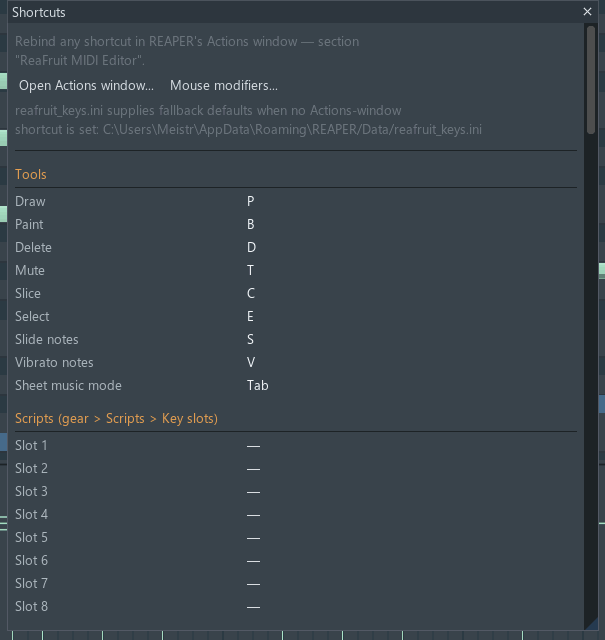
- Every editor command is a REAPER action in its own Actions-window section, ReaFruit MIDI Editor. Rebind it there like any REAPER action; the editor reads the keymap as it changes. gear › View Shortcuts lists the bindings as they stand and opens that section.
- A key set in the Actions window wins. Otherwise the file
Data/reafruit_keys.iniin the resource folder applies (action = ctrl+shift+key,noneto unbind), then the built-in default. - On macOS, Ctrl in these tables means Cmd.
- Keys marked † are not written into REAPER's keymap because they collide with another default, so the Actions window shows the action as unbound; the key still works in the editor.
- Sheet music keys apply only in Sheet Music Mode, and note-input keys only while the caret is active; inside those layers they win over the roll's keys.
Transport and view #
| Key | Action |
|---|---|
| Space | Play / stop |
| F | Scroll with playback |
| Home | Go to project start |
| ← → ↑ ↓ | Pan the view |
| PgUp / PgDn | Zoom in / out (timeline) |
| Alt+V | Toggle ghost notes |
| Alt+B | Bass threshold line |
| Alt+A | Lane: last touched FX parameter |
| Tab | Sheet music mode |
| F1 | Open the manual for the item under the mouse |
Selection and clipboard #
| Key | Action |
|---|---|
| Ctrl+A / Ctrl+D | Select all / deselect |
| Esc | Clear the selection; with nothing selected, close the editor |
| Shift+C | Select the notes of the picked colour |
| Ctrl+C / X / V | Copy / cut / paste at the playhead |
| Ctrl+B | Duplicate |
| Delete, Backspace | Delete the selected notes or points |
| L (hold) | Show the magic lasso's path |
| ` (hold) | Pattern mode |
Editing #
| Key | Action |
|---|---|
| Ctrl+Z / Ctrl+Y / Ctrl+Shift+Z | Undo / redo / redo |
| Shift+↑ / ↓ | Transpose a semitone |
| Ctrl+↑ / ↓ | Transpose an octave |
| Shift+← / → | Nudge a grid step |
| Alt+C | Recolour with the picked colour |
| Ctrl+G | Glue notes / merge clips |
| Ctrl+L / Ctrl+Alt+L | Legato / legato with slides |
| Ctrl+U | Chop to the grid |
| Ctrl+Q | Quick quantize note starts |
| Alt+Q / H / S / W | Quantize / Humanize / Strum / Time warp sessions |
| Alt+Shift+S | Swing boxes |
| Alt+R, Ctrl+Enter | Arpeggiator boxes; glue the pattern |
| Alt+T | Chord stamp boxes |
Tools and modes #
| Key | Action |
|---|---|
| P B D T C E | Draw, Paint, Delete, Mute, Slice, Select |
| S / V | Slide / vibrato mode |
Parameter boxes #
| Key | Action |
|---|---|
| 1 to 9 | Hold with the wheel to change box 1 to 9; a press runs a button box |
| Enter / Esc | Keep / cancel a session |
Sheet music #
| Key | Action |
|---|---|
| N | Note input on / off |
| 7 6 5 4 3 2 1 | Whole to 64th note |
| ., 0 | Dotted; rest |
| Ctrl+2 to 7 | Duplet to septuplet |
| Q / W | Halve / double the duration |
| R, J | Repeat the last note; respell |
| ↑ / ↓ †, Alt+Shift+↑ / ↓, Ctrl+↑ / ↓ † | Pitch a semitone, a scale step, an octave |
| ← / → †, Ctrl+← / → | Previous / next note; previous / next measure |
| - \ = | Flat, natural, sharp |
| Ctrl+Alt+1 / 2 | Voice 1 / 2 |
| Shift+S / V / N / O | Staccato, accent, tenuto, marcato |
| X, S † | Flip stems; slur |
| Ctrl+Shift+I, Ctrl+Delete | Insert mode; remove time |
Sheet note input #
| Key | Action |
|---|---|
| A to G † | Enter the pitch |
| Shift+A to G † | Add the pitch to the chord |
| + (Shift+= or the keypad) | Tie |
| Esc † | Leave note input |
Scripts #
ReaFruit adds a ReaScript API (reaper.ReaFruit_*) that reads and writes the open clip's notes, selection, colours, slides, settings and lanes, and can show its own parameter boxes. The functions are documented on the Reference page; this section covers the menu.
The Scripts menu #
- gear › Scripts lists the
.lua,.eeland.pyfiles inScripts/ReaFruitin the resource folder, subfolders as submenus. A click runs the script; a script that opens boxes previews live until you keep or cancel. - Run as native MIDI editor script… runs a script written for REAPER's MIDI editor against the open clip.
- Open scripts folder and Rescan. The helper library
reafruit.luaand the examples are written there at load.
Key slots #
gear › Scripts › Key slots assigns a script to each of eight slots. Each slot is an action, Run script slot N, in the ReaFruit MIDI Editor section, so it can take a key in the Actions window. Slots work with the editor closed too; a script may open it. The Shortcuts window lists the slots with their scripts.
Example scripts #
| Script | Does |
|---|---|
| Dump notes to console | Lists the notes with bar and beat, name, articulation and key name. |
| Select every other note | Selects every other note in time order. |
| Randomize velocities (boxes) | Random velocities within a range, with a die. |
| Velocity shaper (boxes) | A ramp, arch or dip across the selection, with strength, level and spread. |
| Expression shaper (boxes) | Shapes a per-note expression or a MIDI CC curve across the selection. |
| Humanize timing (boxes) | Random timing offsets, starts only or ends too. |
| Insert chord at mouse | A triad at the mouse, scale-aware with Scale lock on. Meant for a key slot. |
| Slides from overlaps | Notes that start over a sounding note on the same channel become slides. |
| Count notes (EEL2) | A minimal EEL2 example. |
Instrument X link #
ReaFruit can mirror a track's notes live into Instrument X and read its articulation list. The link lives under gear › Tools › Articulation › Instrument X link.
- In Instrument X, run the ReaFruit bridge script (
ix_bridge.lua, shipped in the tools folder). The status line in the submenu reports when it is seen. - Attach to Instrument X track picks the track there by name; the roster comes from the bridge.
- Mirror this track to Instrument X switches the live mirror on. Start offset (QN) shifts the notes; Force push and Force pull resend either way.
- Create articulation map from Instrument X turns its articulation list into a map for the colour slots.
MCP server and license #
The extension contains an MCP server, so an AI client on the same computer can read the project, open the editor, select and edit notes, change settings, and write automation. It is off by default, listens only on localhost, and its tools are listed on the Reference page.
Turning the server on #
- gear › Advanced › MCP server (LLM access on localhost). MCP port offers 7323 (the default), 7324, 7325, 8765 and 9765; a row reports if the port could not be opened.
- Point the client at
http://127.0.0.1:7323/mcp. Setup lines for common clients are on the Reference page. - Scripts never need the server:
ReaFruit_CallToolruns the same tools from ReaScript, free.
The license #
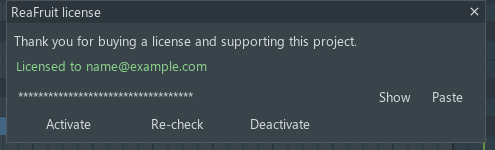
- License state
- The key
- Activate, Re-check, Deactivate
The editor and the scripting API are free. The MCP server's tool calls are the one licensed feature: the first 100 calls are a free trial (status calls do not count), after which a key is needed. A key is a one-time purchase and covers up to five computers.
- gear › License… opens the window. Paste the key from the receipt e-mail or the download page and press Activate. Re-check verifies again; Deactivate clears the key from this computer but does not free its activation. Buy a license opens the shop.
- A licensed copy re-verifies every three days when it can and keeps working offline for 30 days.
- A month after the first open, an unlicensed copy shows one thank-you note with links to leave a review or buy; it never returns.
- Nothing about your projects leaves the computer; verification sends the key and a machine id.
Glossary #
| Term | Meaning |
|---|---|
| Clip | A MIDI item on the track, shown as a band in the editor. The current clip is the one the editor was opened on. |
| Pooled clip | A clip that shares its notes with another (REAPER's pooled MIDI); editing one edits both. Unpool separates them. |
| Ghost note | A note from another track or clip, drawn dimmed for reference. |
| Slide | A note drawn in Slide mode: a pitch bend from the sounding note to the slide's pitch over its length. |
| Vibrato | A note drawn in Vibrato mode: its interval is the depth, its length the ramp-up, its velocity the rate. |
| Stand-in | The MIDI note the editor writes under a slide or vibrato so the host plays the bend; drawn as the curve, not as a note. |
| Articulation map | A file giving each of the 16 note colours an articulation and its keyswitch. |
| Lane | The strip under the grid that edits one control: velocity, swing, a plugin parameter, an envelope, a CC, the tempo. |
| Value mode, points mode | A lane with one handle per note, or a lane with a free envelope of points. |
| Parameter box | A control in the grid's bottom right corner; sessions of them preview an edit live. |
| Snap | The grid new and moved notes land on. Alt ignores it. |
| Scale lock | Keeps notes on the chosen scale. |
| Chord stamp | Drawing whole chords with one click. |
| MPE | MIDI Polyphonic Expression: each note on its own channel, so each can bend on its own. |
ReaFruit MIDI Editor v0.9.6-beta · Created by Meistr · Reference